Using Workflow Approvals
The Invoice Automation Workflow Approval system is designed to add a layer of assurance that documents are being processed correctly and allows you to choose which documents should be allowed to process automatically & which should always require human intervention. This is achieved by by the use of a powerful querying system to filter documents and assign them to various users for approval based on your business requirements.
In this guide we will look at the Approvals system in detail, create an approval to capture high value invoices & follow several supplier documents through Invoice Automation to see the effect.
The Problem
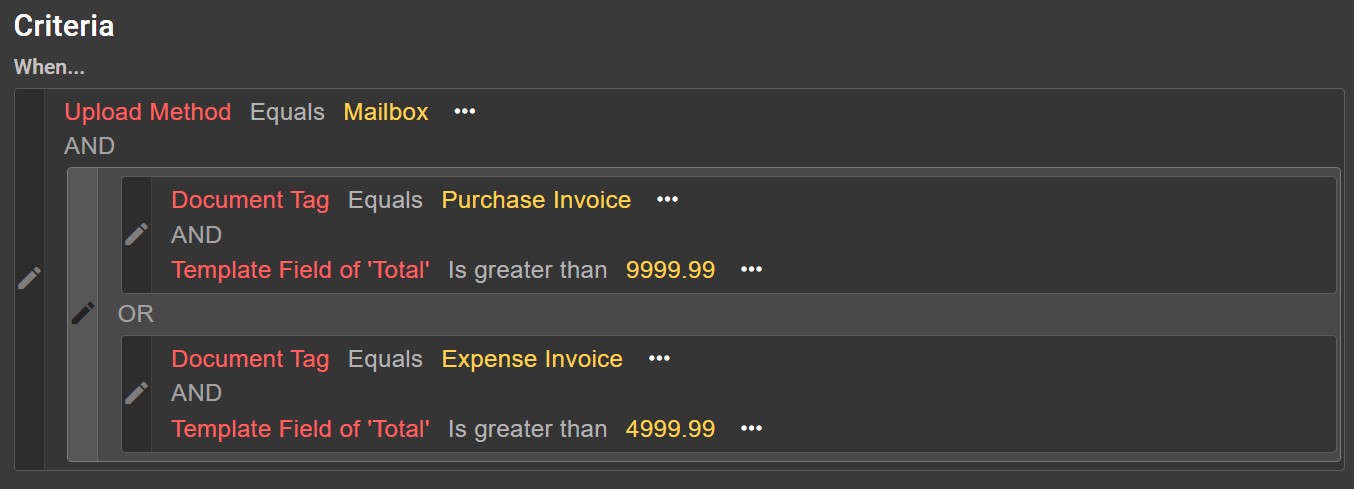
In this example we want to create an Approval to capture all Purchase Invoices with a value £10,000 or more & Expense Invoices with a value £5,000 or more that have been automatically uploaded from the associated Company Mailbox.
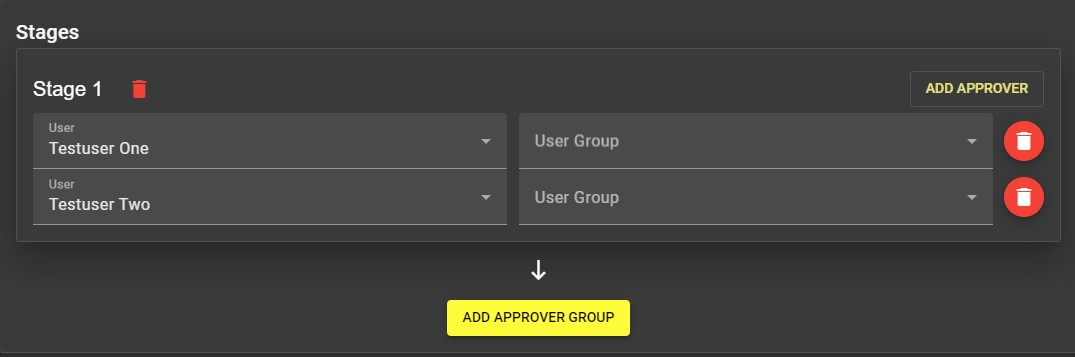
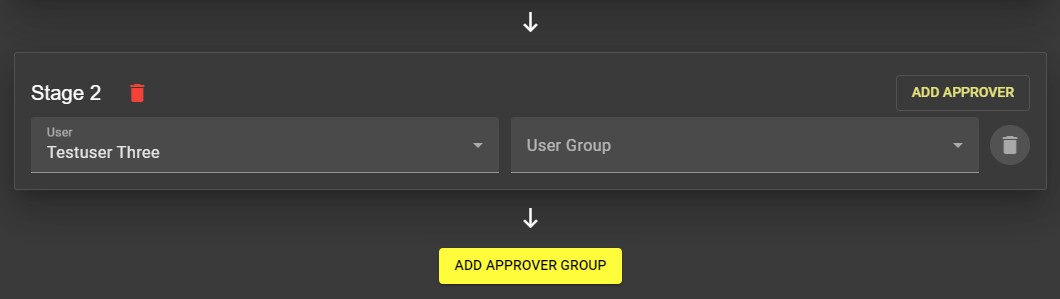
Once we have captured the documents we will assign 3 users to approve the document in 2 stages, first either TestUser One or TestUser Two will need to approve the document and finally TestUser Three will need to approve.
Creating the Approval
Name
Lets start by creating an approval, first we'll choose a name. We will call it High Value Invoices.
Criteria
Next lets look at the Criteria section, this section allows us to create complex queries to capture only the documents we require, to begin we click 'Add Criteria'.
First we'll add a criteria for that limits the Approval to only IMAP Documents.

Next, using the Edit icon at the left we'll add a new group.
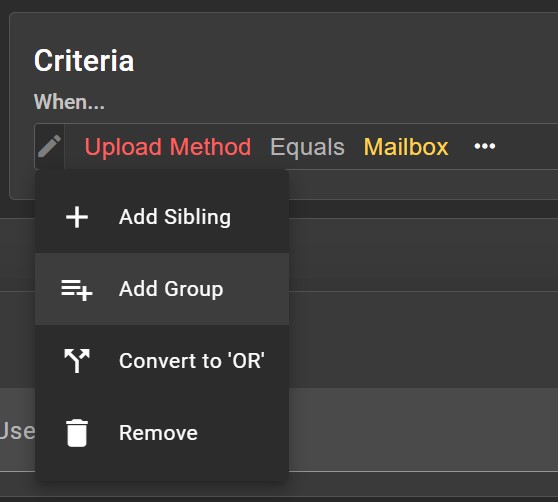
Now we can add the first part of our group, a Document Tag for Purchase Invoice followed by a second requirement for Expense Invoice. Adding a second criteria can be achieved by using the Edit icon & choosing 'Add Sibling'
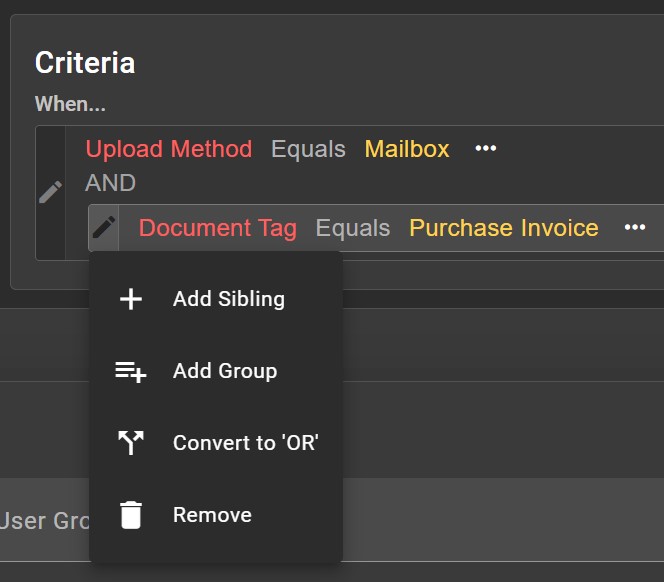
Now, as we want to capture documents tagged as either a Purchase Invoice or an Expense Invoice we need to convert the group to an OR
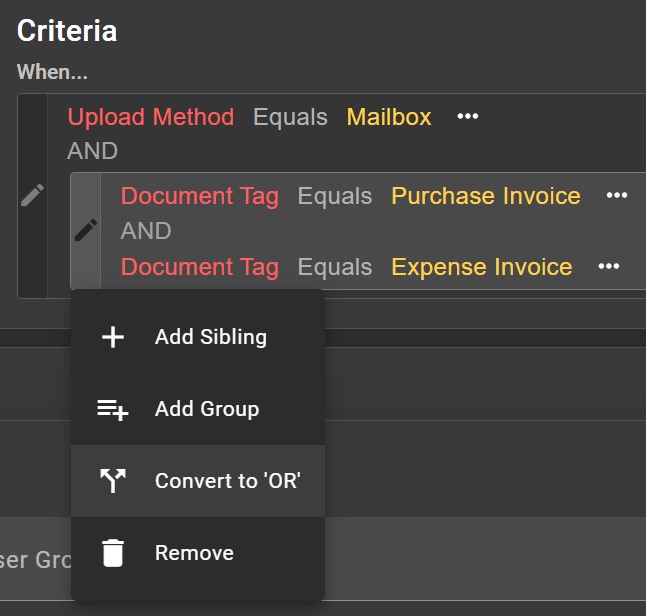
Finally we need to to add the requirements to limit the Workflow to only Purchase Invoices £10,000 or more & Expense Invoices to £5,000 or more. to do this we'll first convert both Document Tag lines to groups & then add a sibling to each with for the Template Field Extended Price Total.

Once complete our criteria looks like the following.
Stages
The Stages tell Invoice Automation what it should do with the documents that have been caught by the criteria of this workflow. Each Stage (or Approver Group) will be used in order, so users in Stage 1 will need to Approve (or Dispute) the document before users in any subsequent stage will be able to.
Lets create our first stage by adding TestUser One & TestUser Two as approvers. Each approver needs to be added on a separate line, using the 'Add Approver' button will create as many lines as required.
Next we'll add the second & final stage using the Add Approver Group button.
Did you know?
You can use the User Groups feature to assign workflow stages to entire groups or teams of users at the same time.
Now we have configured the Workflow Approval lets save & create it to see the how it functions.
Checking the Results
Lets upload a few Purchase Invoices with differing values.
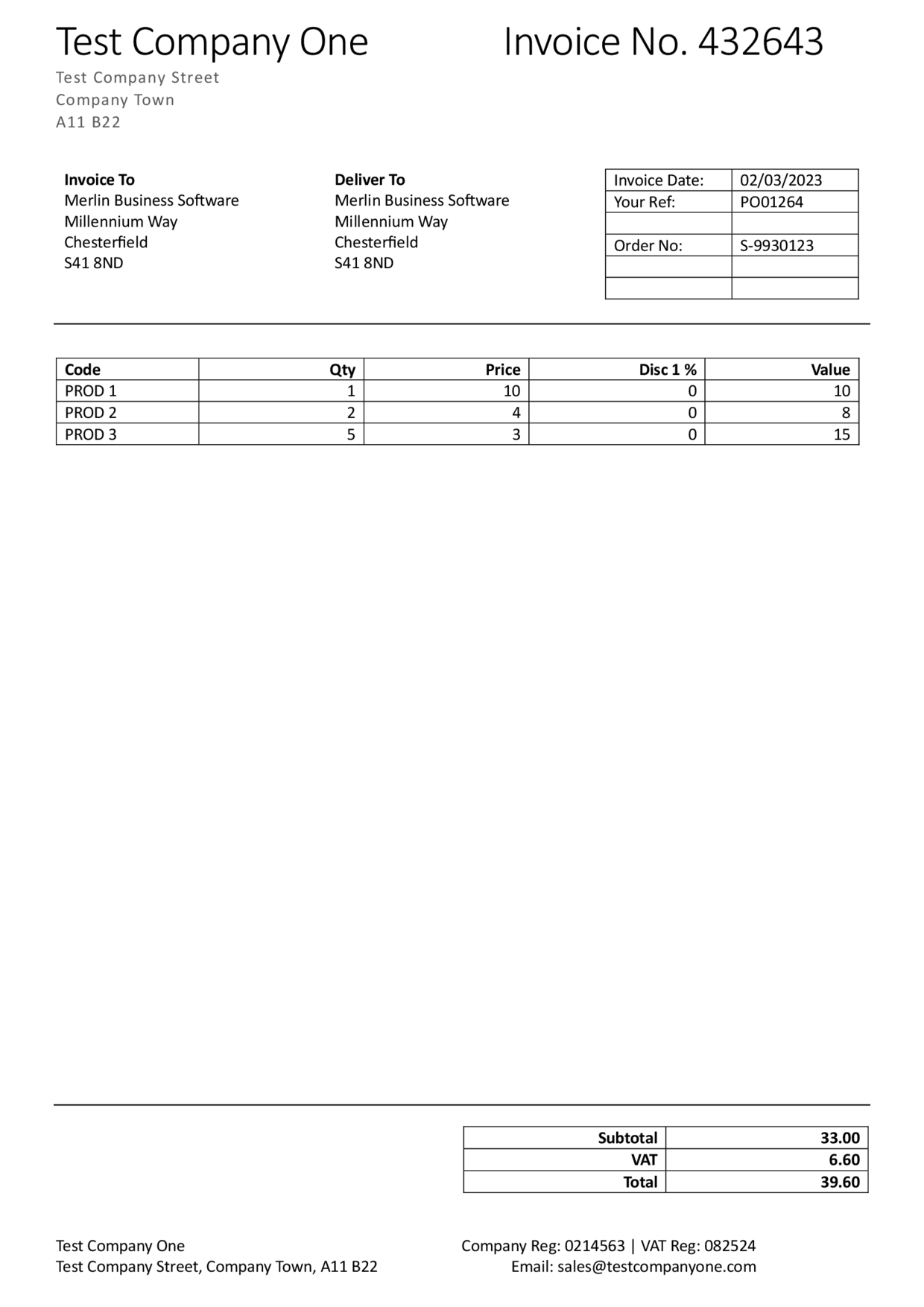
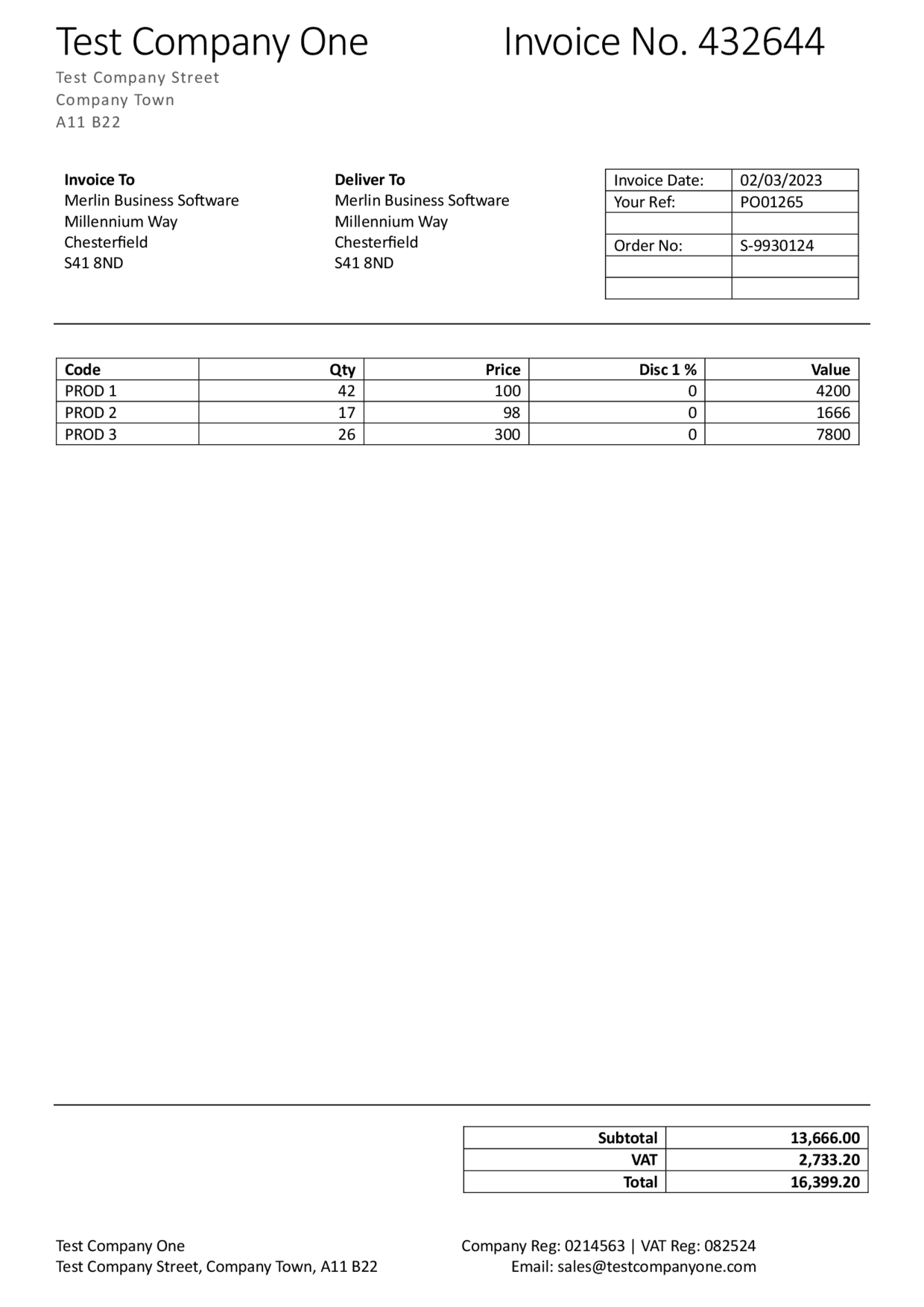
We can see that as the first invoice is processed it moves straight to the Fully Processed Status as it is not being caught by the Workflow Approval.
However the second invoice for a much larger amount has been captured by the Approval and is now in the Pending Approval Status

Approving an Invoice

As we are not logged in with a user listed on the Workflow Approval, we can not action the approval and not progress the document, it will now wait until one of the listed users (or a member of a listed User Group) approves or disputes the document. Lets log in as TestUser One and action the approval.

Now we can see new options are available to Approve or Dispute the document.
Info
For more information about disputing a document please see Document View - Actions Menu - Dispute
By clicking Approve Invoice Automation will automatically move the the document on to the next Approval Stage, if this is the last stage in the Approval then this Approval will be completed, once all outstanding Approvals are complete on a document it will change to the Fully Processed Status and be eligible for export to the connected ERP solution.

We have now created & tested a Workflow Approval. Invoice Automation allows you to create an unlimited number of approvals to tailor the process of approving documents to the requirements of your business.