Purchase Invoice Template Creation Guide
This guide will will demonstrate the process of uploading, creating a template for & processing a supplier Purchase Invoice.
Upload the Document
First, lets upload a PDF containing the document & wait for Invoice Automation to process the file.
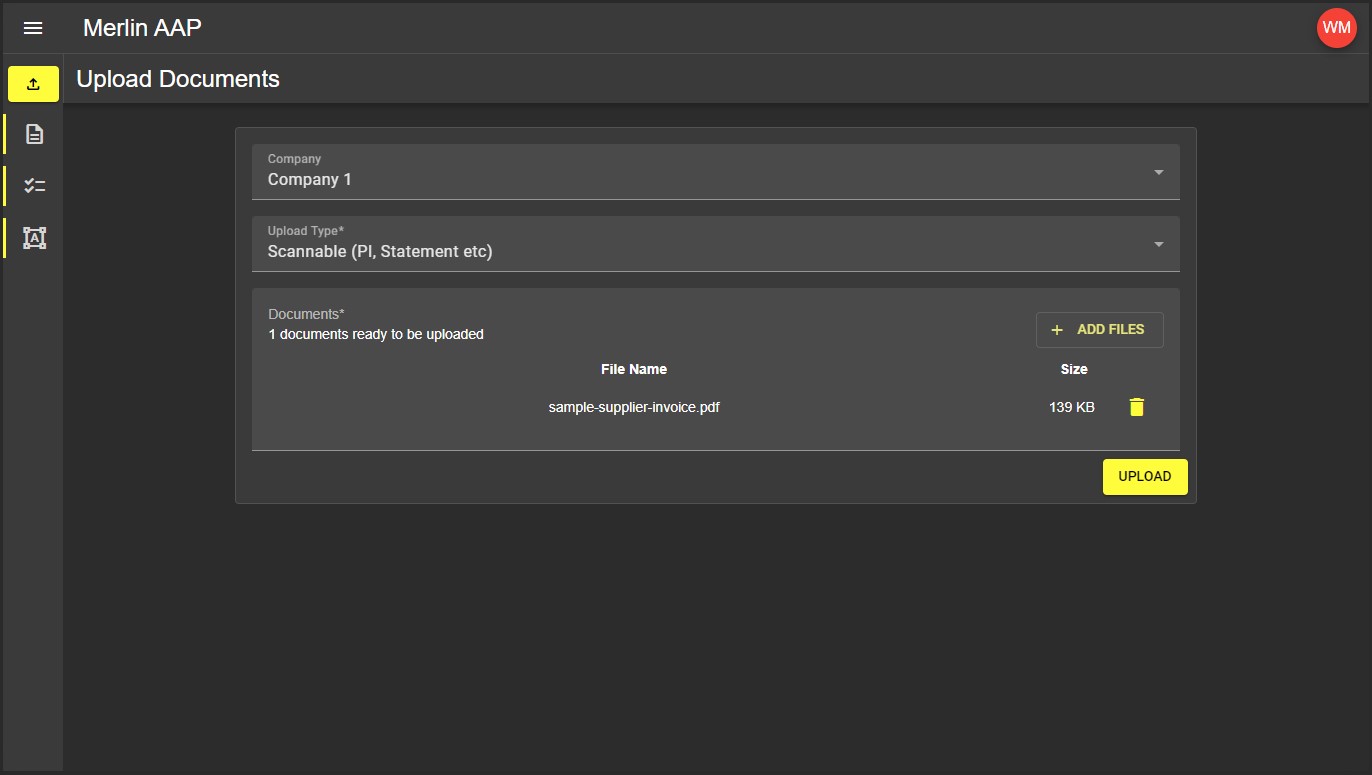
Once the file has been uploaded we need to wait for Invoice Automation to process the file to discover all the information it contains. When this process is complete the file will either enter one of the processed statuses if a template was found or failed if no template was found. For more information about statuses see Document Statuses.
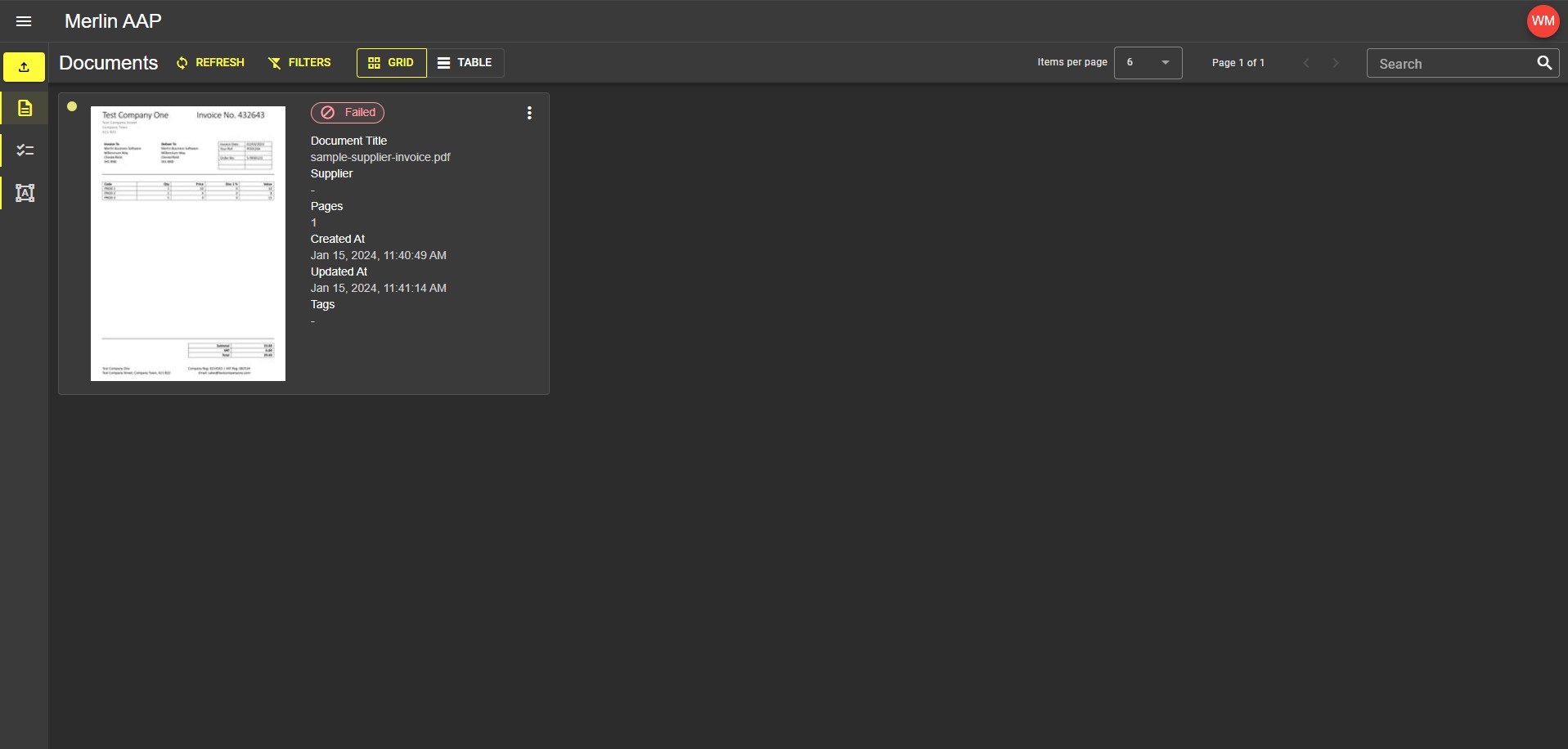
Create the Template
Our document does not have a template yet, lets create one. To begin, click on the failed document image.
Now we are in the template editor, we first need to tell Invoice Automation which supplier this document & template belongs to.
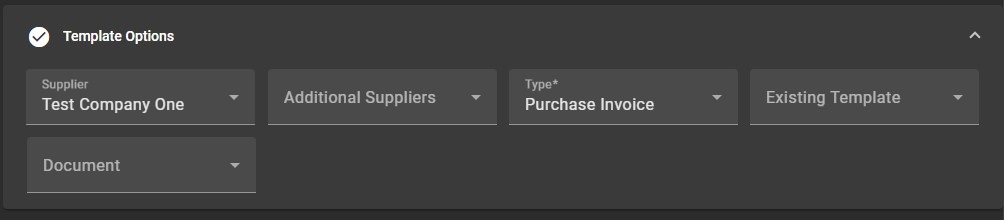
Next, lets define the keys that will let Invoice Automation identify & link this template to the invoice (and all future invoices for this supplier!). Only two keys are required, but we will define as many as possible to improve the detection Invoice Automation can perform. We also need to define the Document Type.
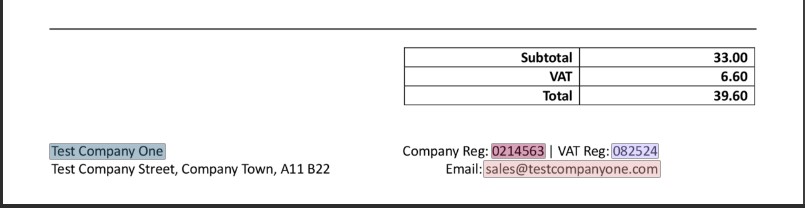
Now the keys are defined, lets tell Invoice Automation where to find the rest of the Document Fields available on the template.
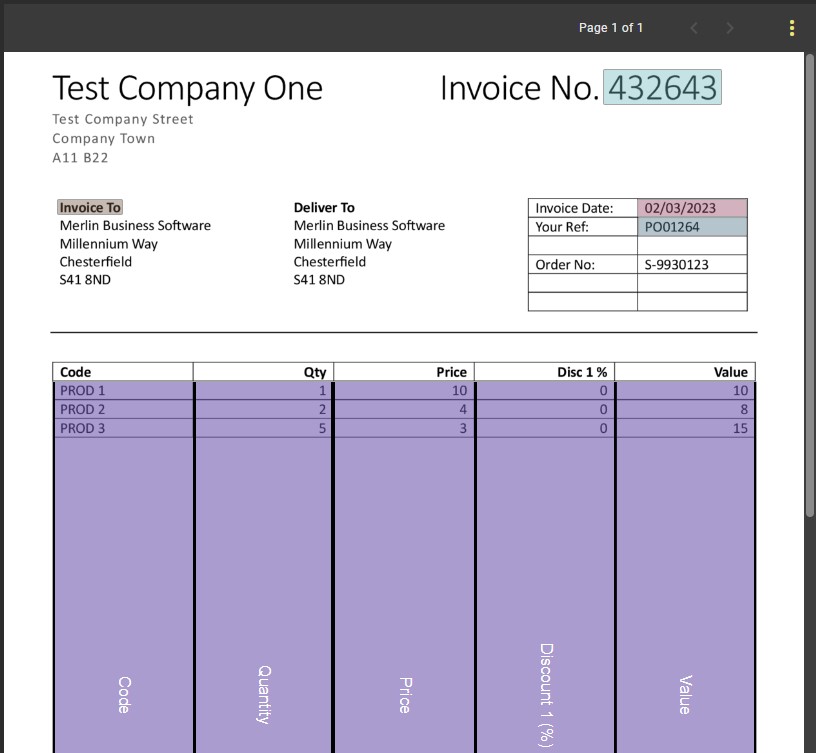
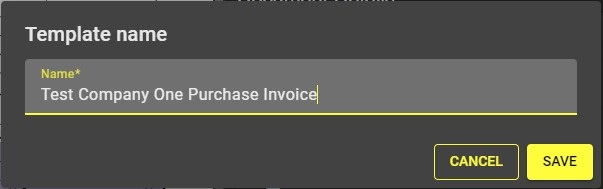
Great! Our template fields have now been defined, lets save it so we can start using it. Each Template needs a unique name, we will name our template after the Supplier.
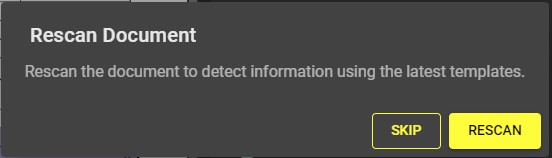
Once our template has been saved Invoice Automation will ask if we want to rescan the document to see the results, lets rescan it now.
Check the results
Now we have created a template, Invoice Automation has been able to accurately extract the data contained within the document, we can now check the results to ensure the accuracy.
Sometimes you may encounter Validation Errors, these errors prevent incorrect or incomplete information being exported to the connected ERP solution. On our invoice we received a validation error, lets have a closer look at it.

We can see from this Error that Invoice Automation has found that we have been invoiced for goods we haven't yet received. We now have to choose how to proceed:
- Leave the document here & wait for the goods to be received. Invoice Automation will automatically update the invoice once the goods have been marked as received in the connected ERP solution.
- Ignore the error & allow Invoice Automation to export the invoice anyway.
This time we are going to ignore the error & allow the invoice to export anyway. Lets click the Ignore button & save the document.
We can now see that the document has no errors. The Document Status is now fully processed & is awaiting export to the connected ERP solution.

Congratulations, we have made our first Document Template. Now future invoices from this supplier should process through the Invoice Automation system with minimal input.