Using Exclusions to Remove Unnecessary Pages
This guide will demonstrate the use and effect of using the Exclusions feature. We will remove an unnecessary Terms and Conditions page from the middle of a Supplier Invoice document.
Upload the Document
First, lets upload our Supplier Invoice & wait for Invoice Automation to extract the document information.
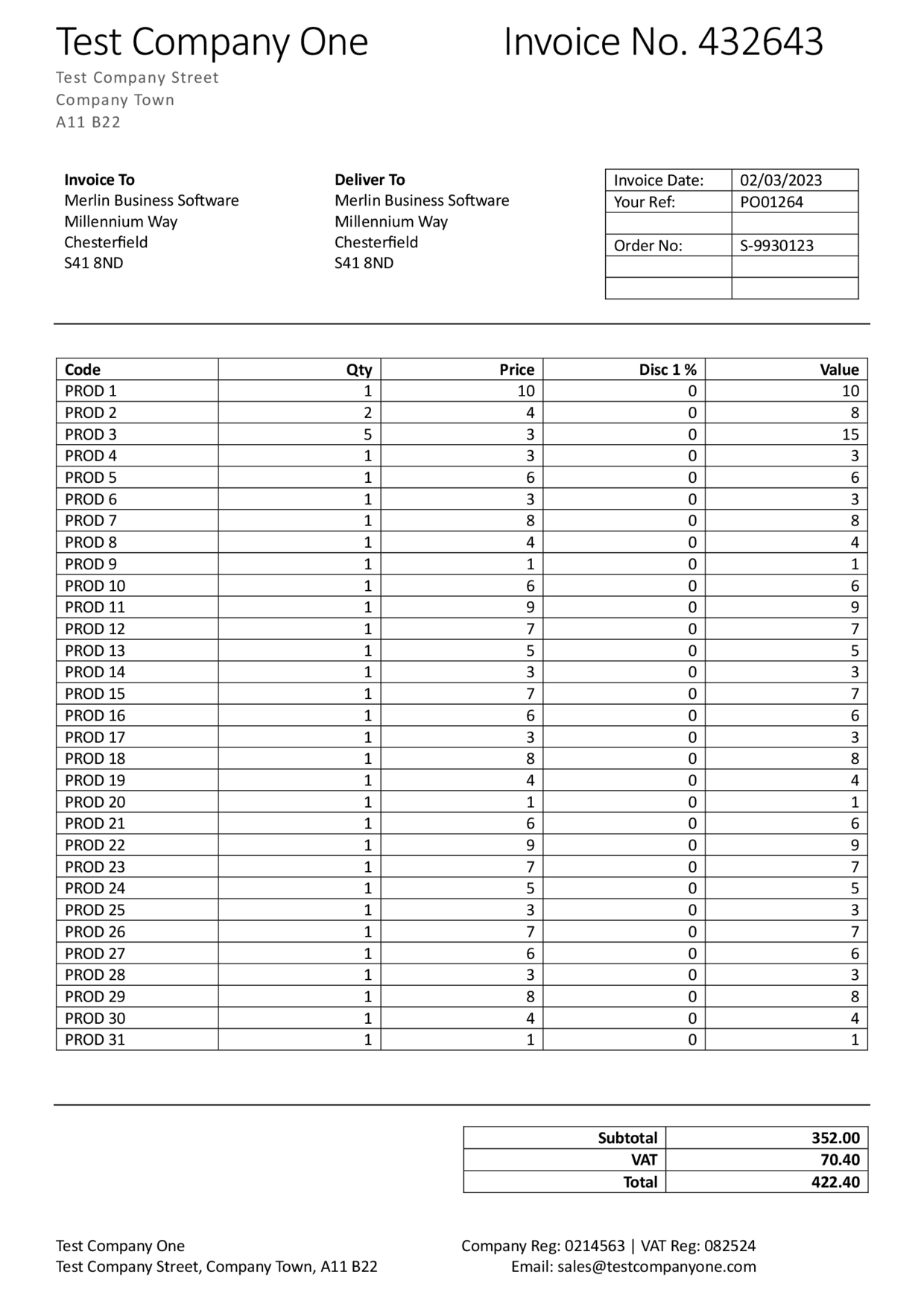
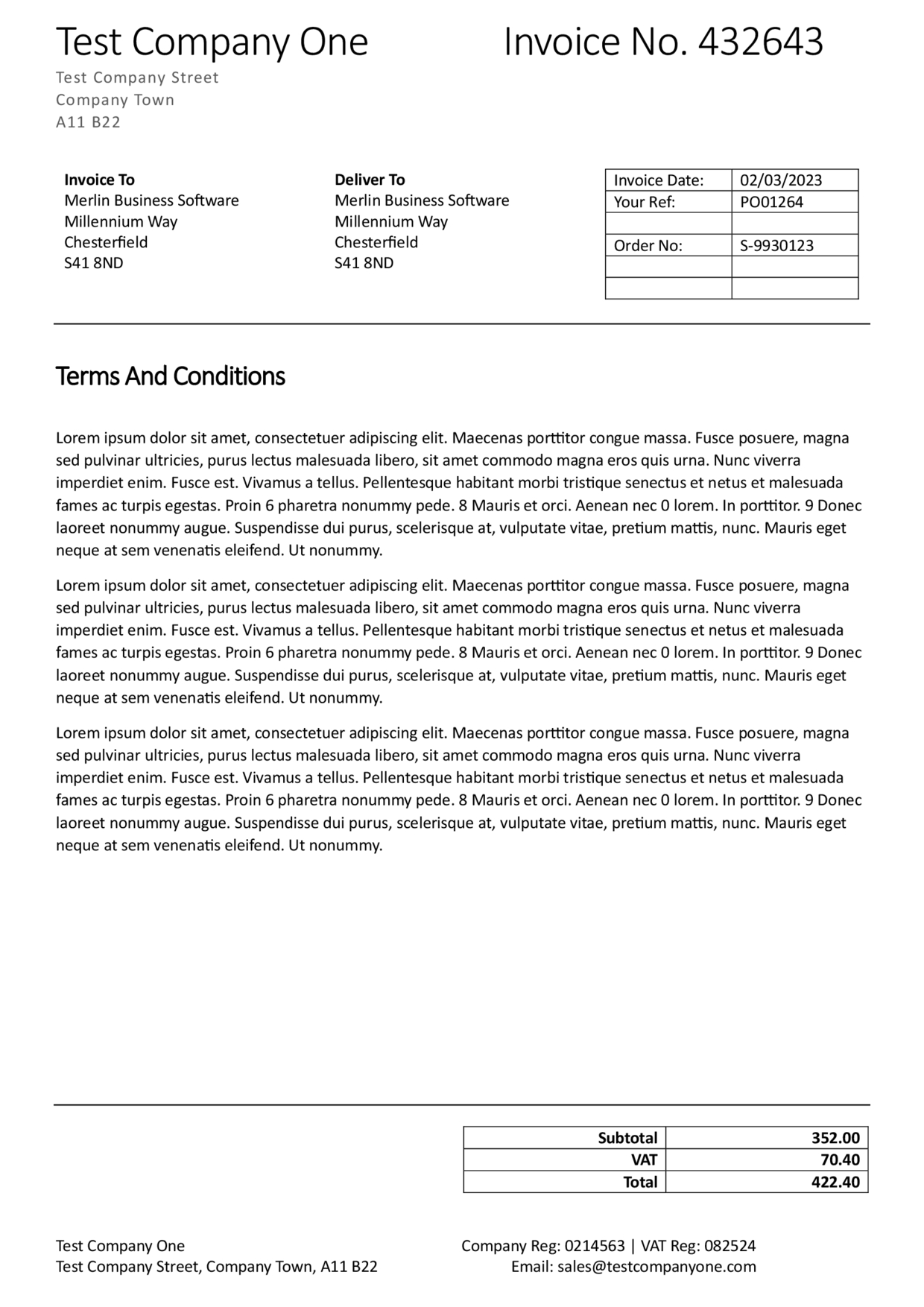
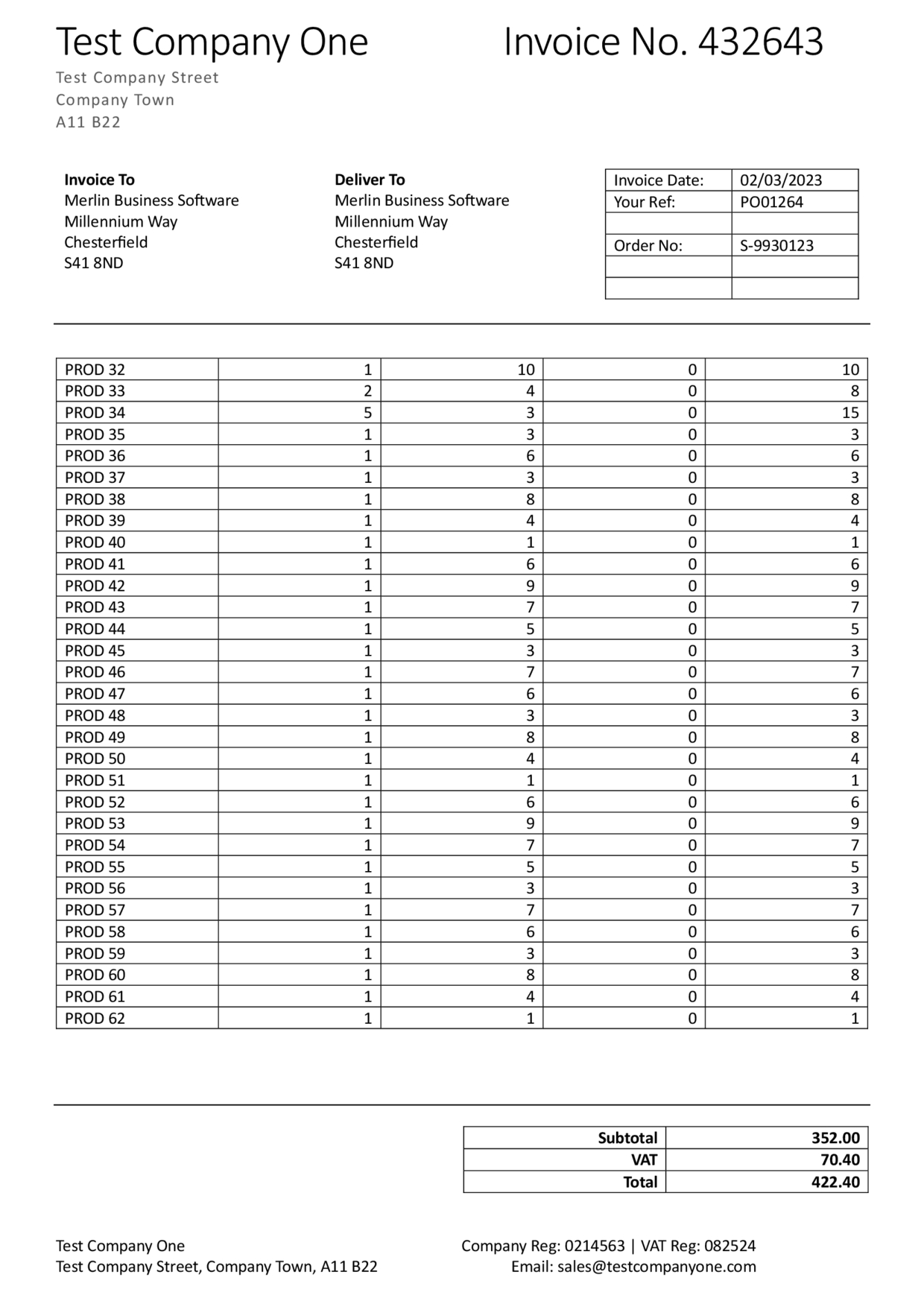
Our invoice contains three pages, with the second page containing the suppliers Terms and Conditions.
The Problem
After Uploading the document & configuring the template for this Suppliers Invoice, we can see that there are some additional Product Lines present in the output. These lines are causing Invoice Automation to fail validation checks for Line & Order Totals.
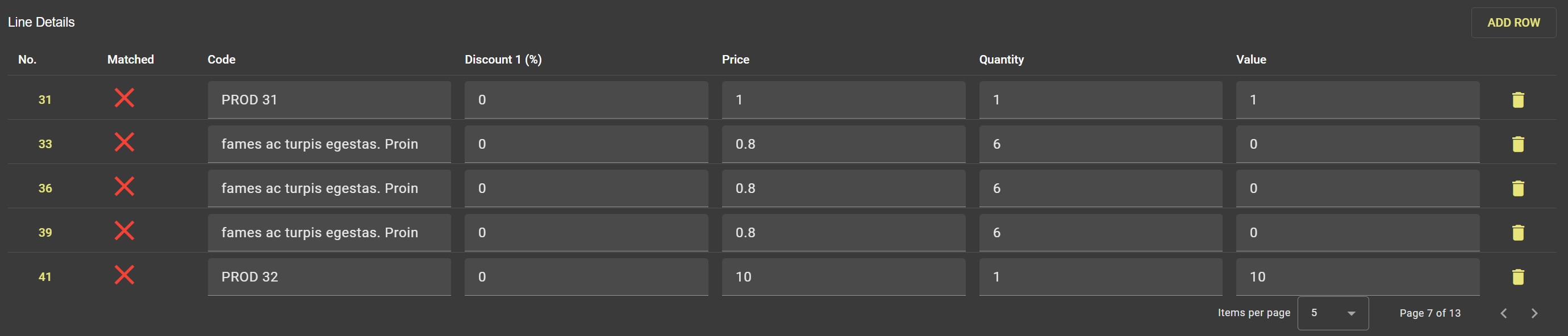
As we can see from the image below, these lines are originating from some unfortunately placed numbers in the Terms and Conditions provided by the supplier.
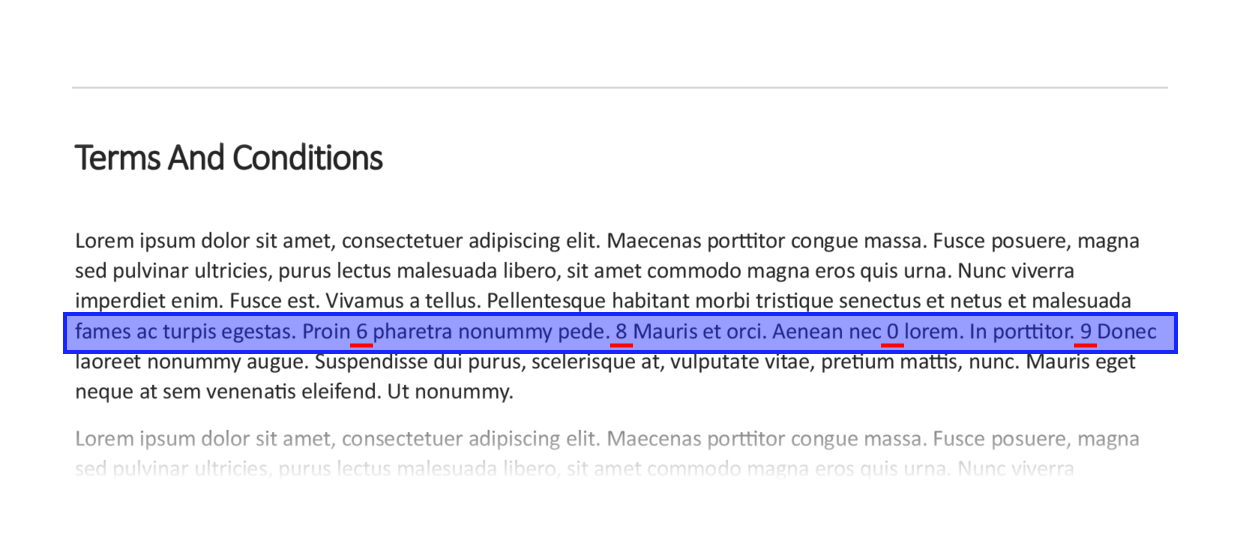
There are numerous tools within Invoice Automation to help with issues like this, however this time we will employ a page Exclusion to remove the offending page entirely.
Creating an Exclusion
Lets create an Exclusion to correct the issue for this document & future documents using this template. First we'll edit the template & open the Exclusion section.

Next, using the page selection buttons above the Document Viewer we will select the page containing the Terms and Conditions. Once on this page we can select some text that will act as the identifier for Invoice Automation to use when removing pages. The text needs to appear in the same place on every page that should be removed.
Here we'll simply use the words 'Terms and Conditions'.
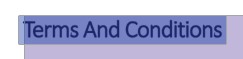

Once we have selected the text we can save the document & allow Invoice Automation to rescan the document using the newly updated template.
Checking the Output
Now Invoice Automation has rescanned the document we can see that Page 2 of the document has been removed from the output, additionally the incorrect Product Lines are no longer present & the document has successfully processed.
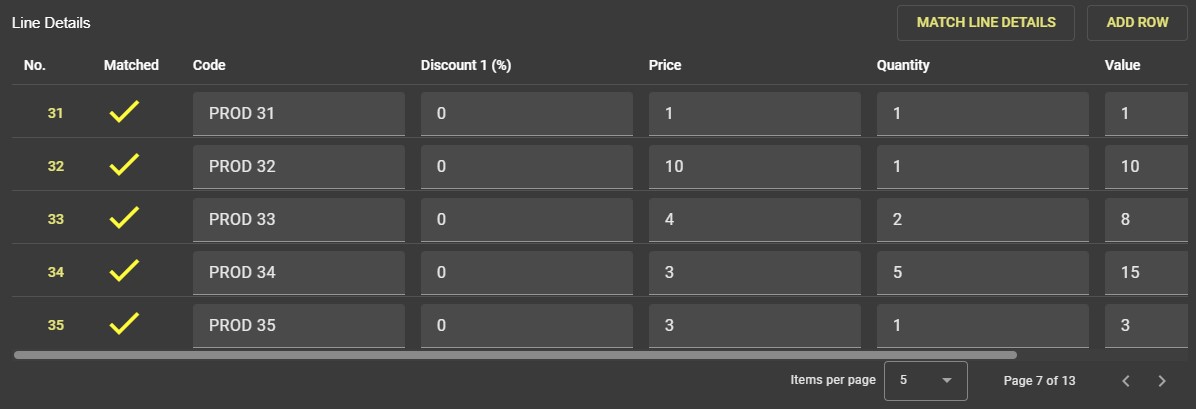
Now all documents received from this supplier that use this template will have their Terms and Conditions removed, even if they are not on Page 2.
Info
Please note that although the page has been removed from the final output a Invoice Automation Document Credit will still be consumed for each page that is removed.