Using Anchors to Improve Template Reliability
This guide will demonstrate the use & result of using Anchors in a document template to improve the reliability of document scanning.
Upload the Documents
For this guide we will need two documents of the same type from the same supplier, we will use two Supplier Purchase Invoices.
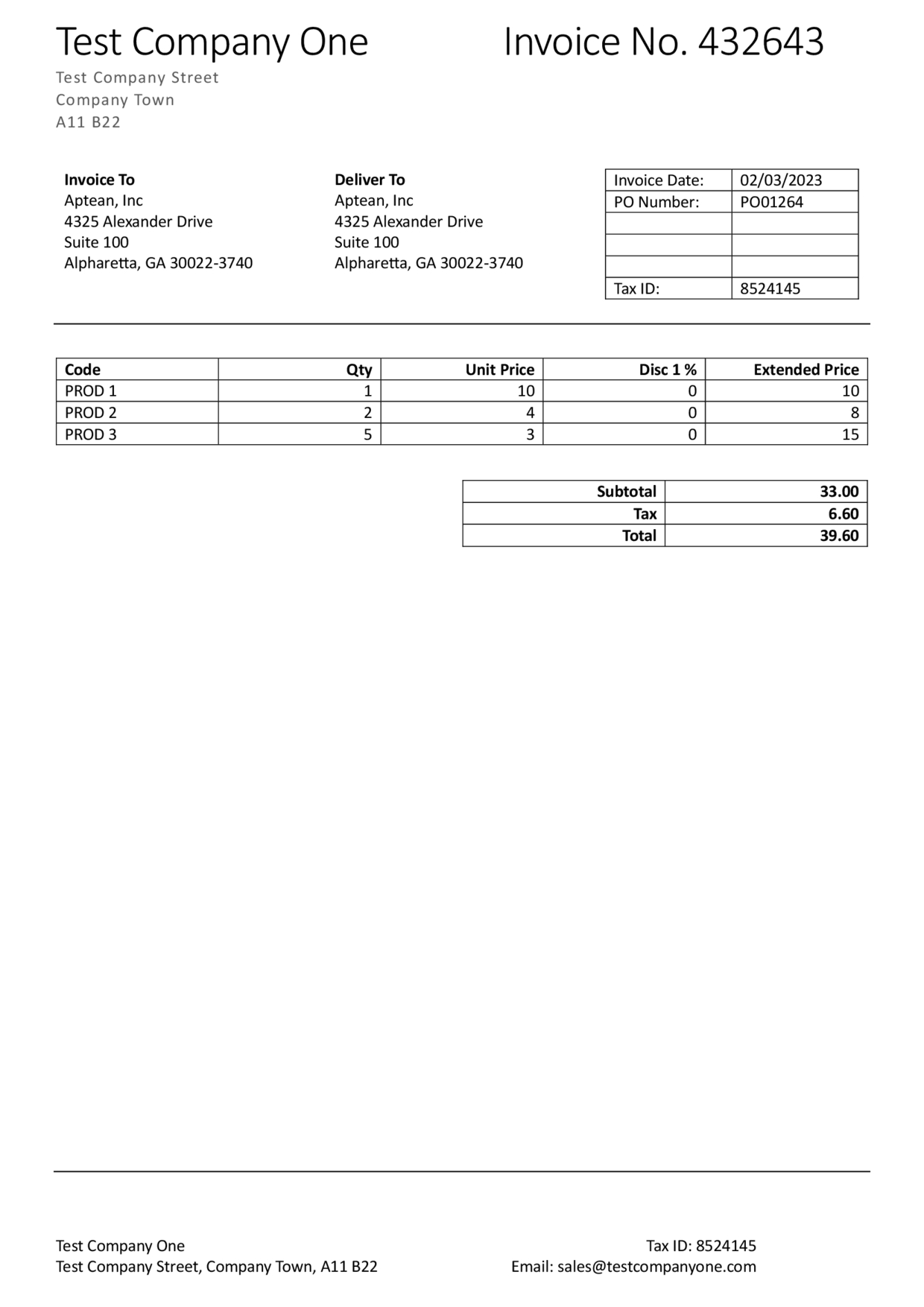
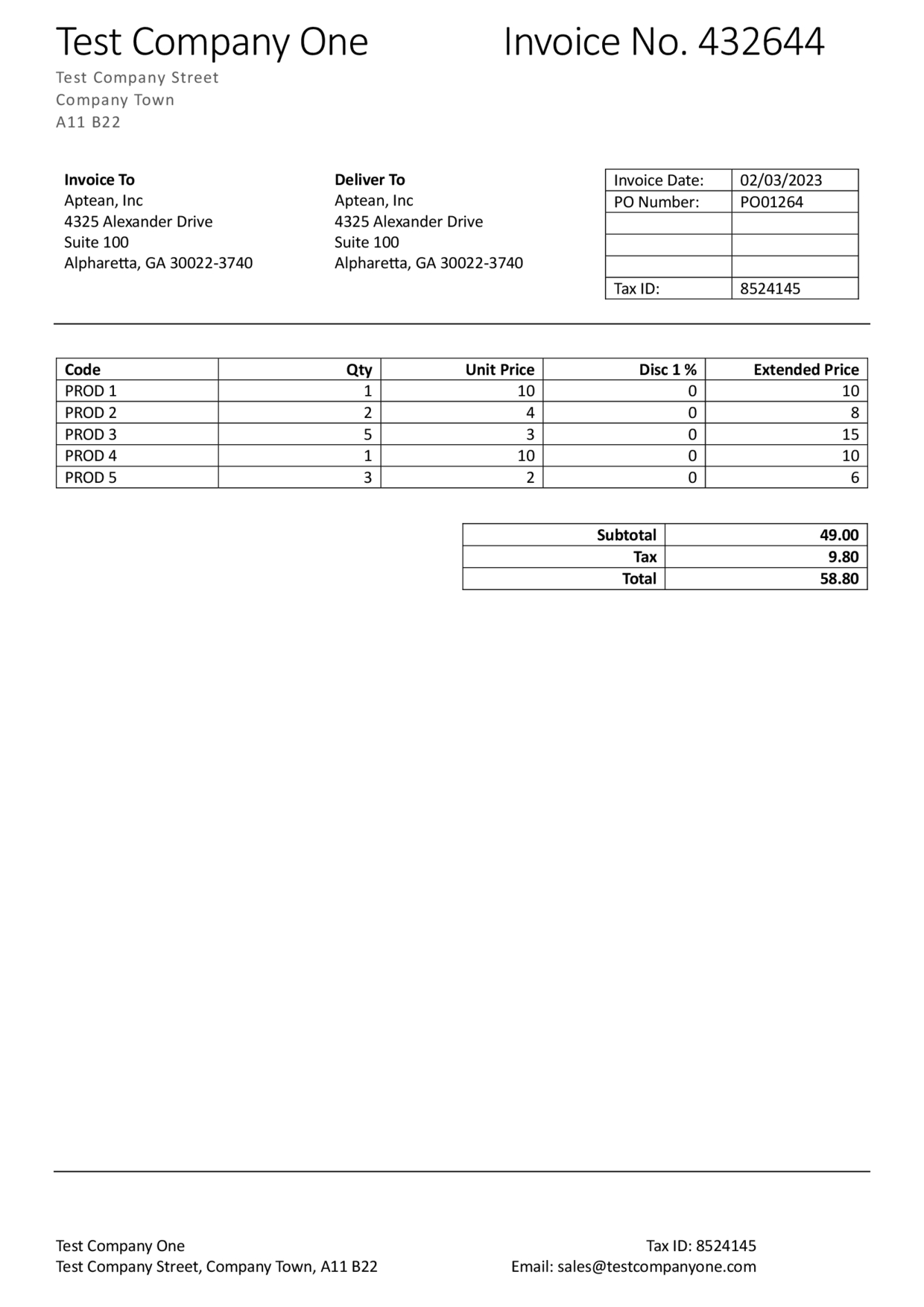
We will upload the documents and create a template for them.
The Problem
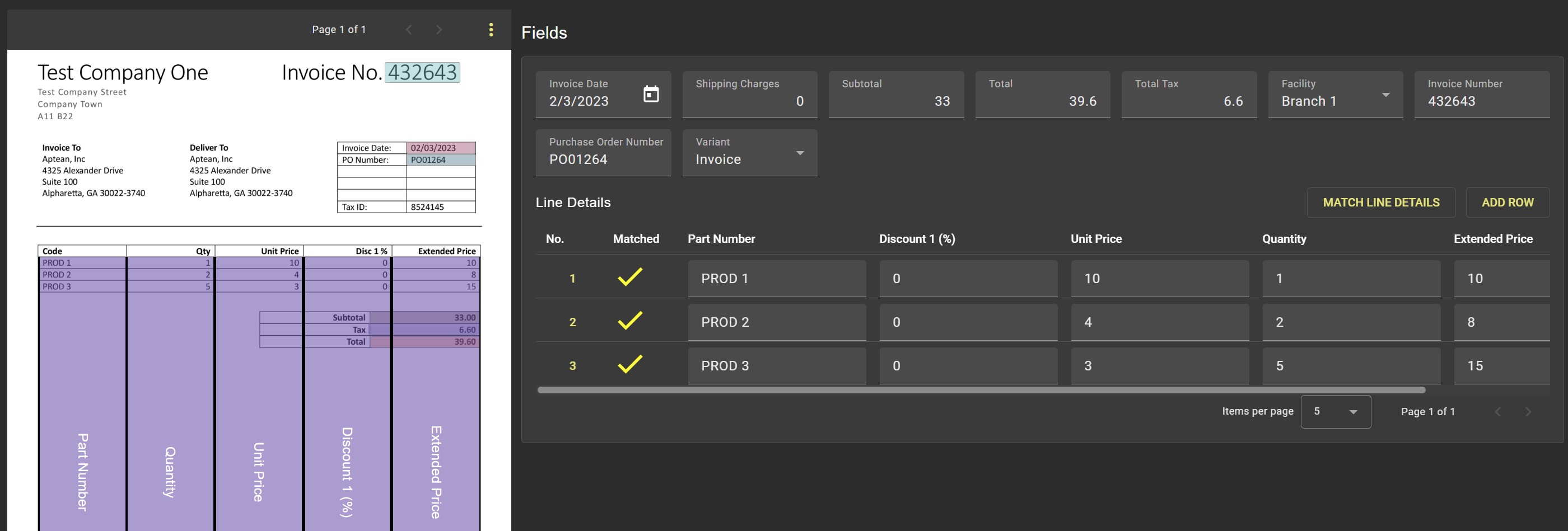 As we can see, the first invoice has been processed successfully and contains all the data required to export to our connected ERP solution.
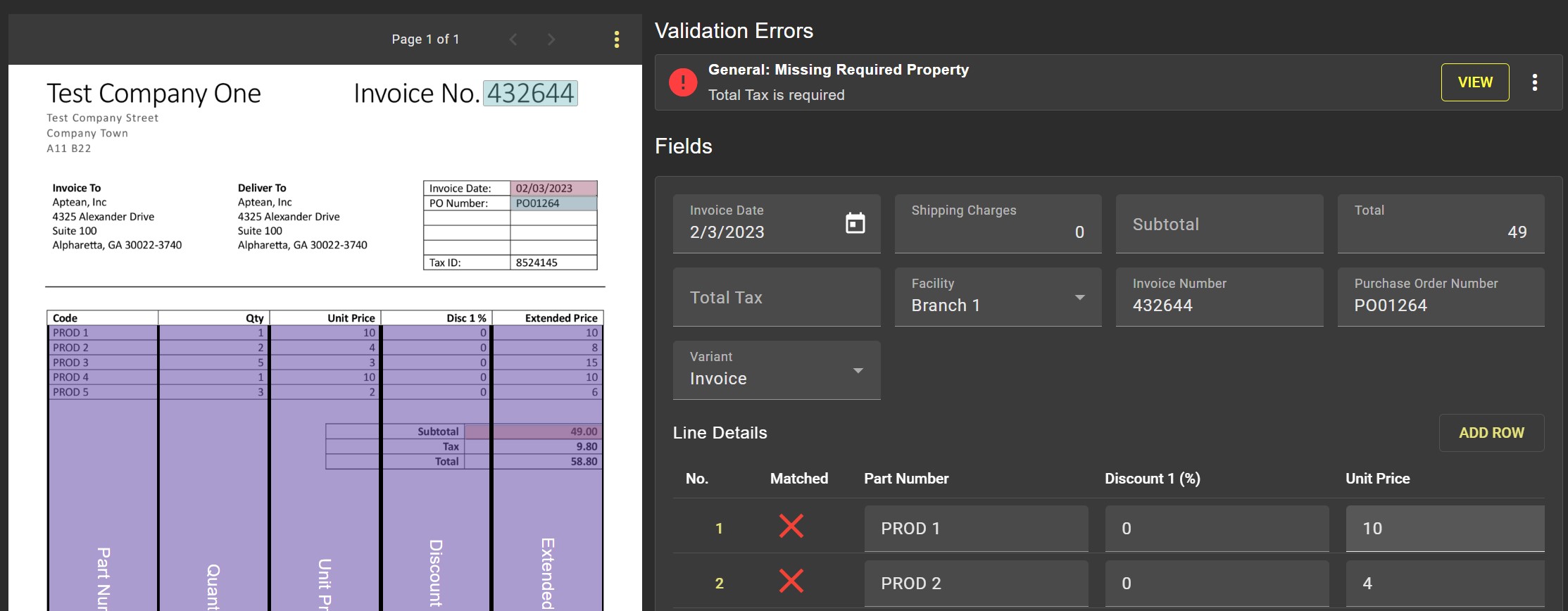 However the second invoice has produced errors.
The errors on the second invoice are due to additional Product Lines being present resulting in the order totals moving further down the page.
Adding Anchors to the Totals
To fix the issue we can use the Anchoring feature in the Template Editor. First we need to edit the template, we can use either document to do this however in our example we'll use the document that successfully processed.
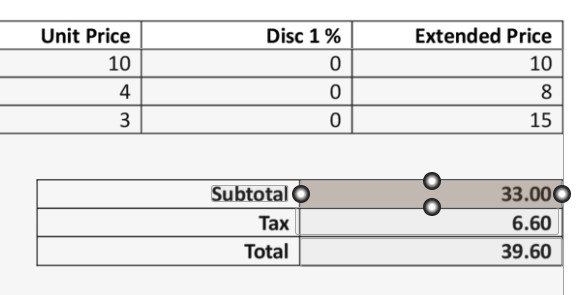
Once in the Template Editor, lets find the first field causing issues, this time its the Subtotal.
By clicking 'Add Anchor' we are able to select an additional piece of text that Invoice Automation will use to track the desired value. Lets use the the key to the left of the Subtotal value and drag a box over it.
Now lets look at the Tax Total which has the same issue. Here our first instinct may be to anchor the value to the Tax label on the left, however if we look closer at the document we can see there is also the words 'Tax Reg' at the top of the document. If we were to use just 'Tax' on this invoice we would likely end up with a Tax Total of 082524 (the VaT Reg number).
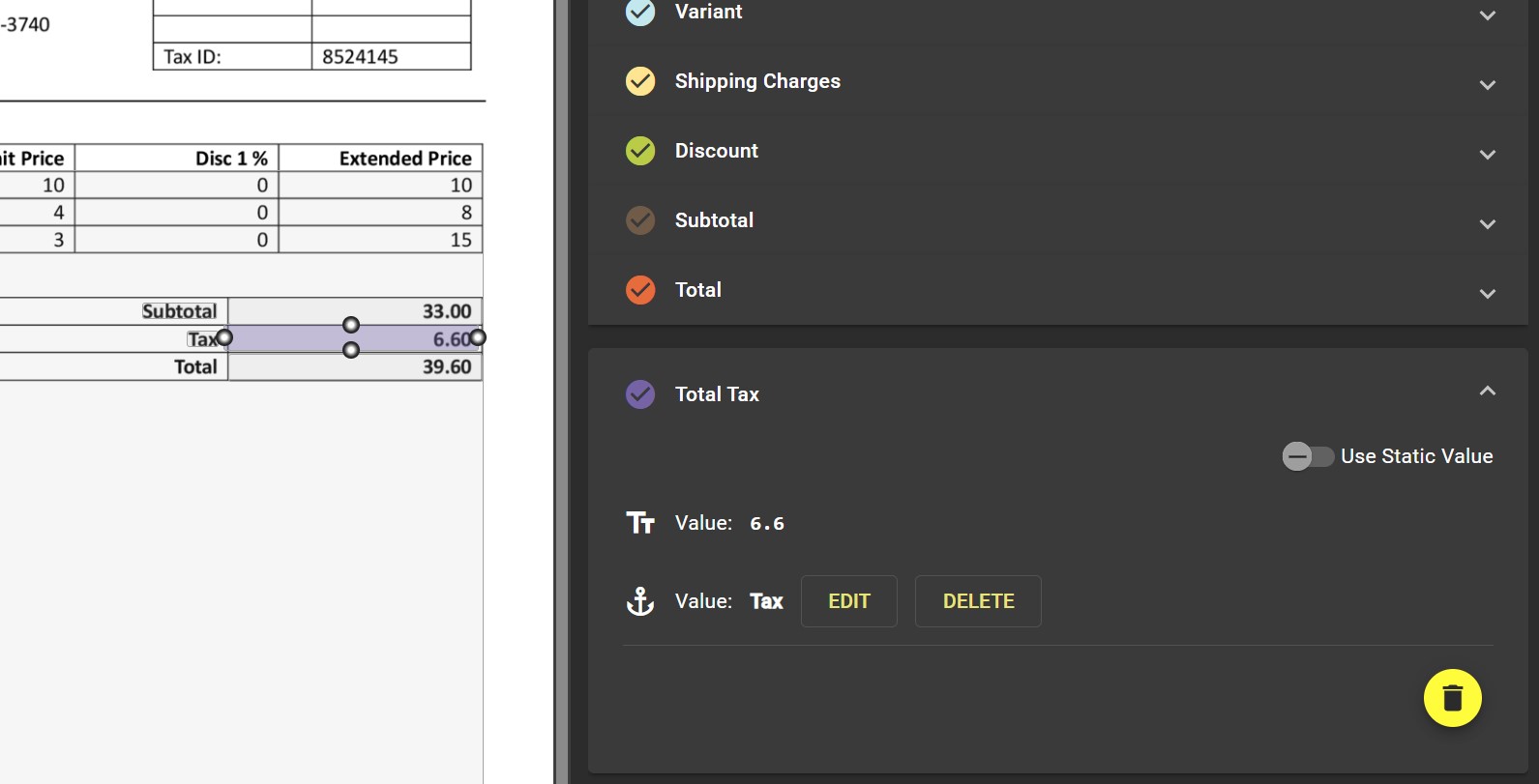
So lets look elsewhere, we can anchor a document field to any piece of text on the document, even if they aren't related to each other so long as both the anchored text and the document value trying to be read are always in the same place relative to one another. For our invoice we'll again tie the anchor to the word 'Subtotal'
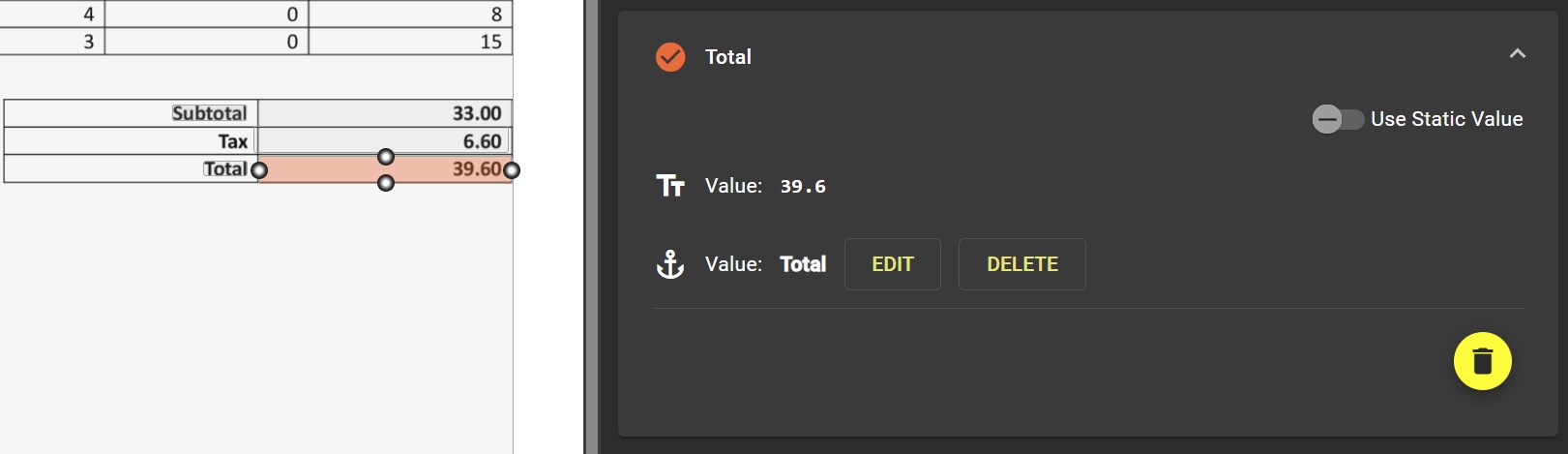
Finally we need to anchor the total, again we can choose to use the word 'Subtotal' or if preferred as it is not used elsewhere we can also use the label for the total itself.
Checking the Output
Lets save the template, let Invoice Automation rescan the document and see the result. Lets also tell Invoice Automation to rescan the second invoice as well.
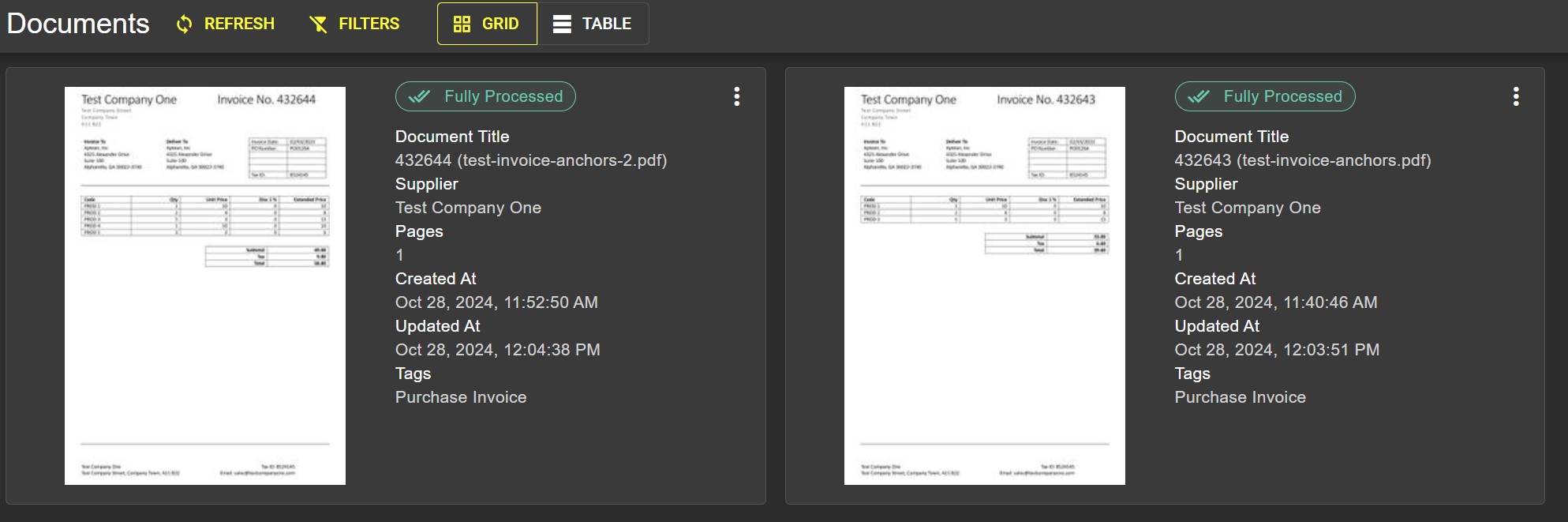
Great! We can now see that both invoices have successfully been processed and have passed all validation checks. This means our template has successfully located the order totals even though they have moved between the two documents.