Using Advanced Features to Improve the Detection of Tabular Data
This guide will demonstrate three ways to utilise Invoice Automations advanced table features to help ensure tabular data is read accurately. We will look how careful use of the Required Column can remove data not belonging to the table, when to use the Row Identifier columns & how to use the Specific Rows feature to selectively limit data extraction.
The Required Column
First lets look at the Required Column Option. This option is available for every column within any table. Its purpose is to tell Invoice Automation that this column must exist for the row to be considered a table line item. For a column to be marked as required its value must appear on at least the first line on the table line item.
Lets begin by taking a look at a table that hasn't picked up the correct information.
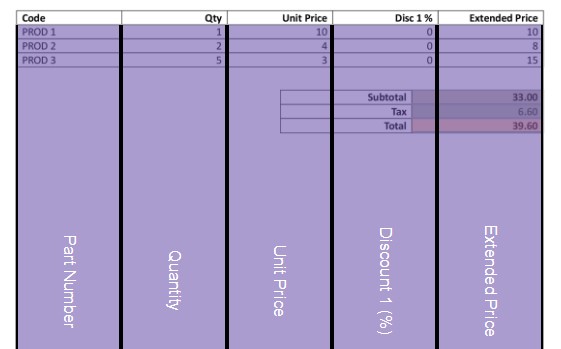
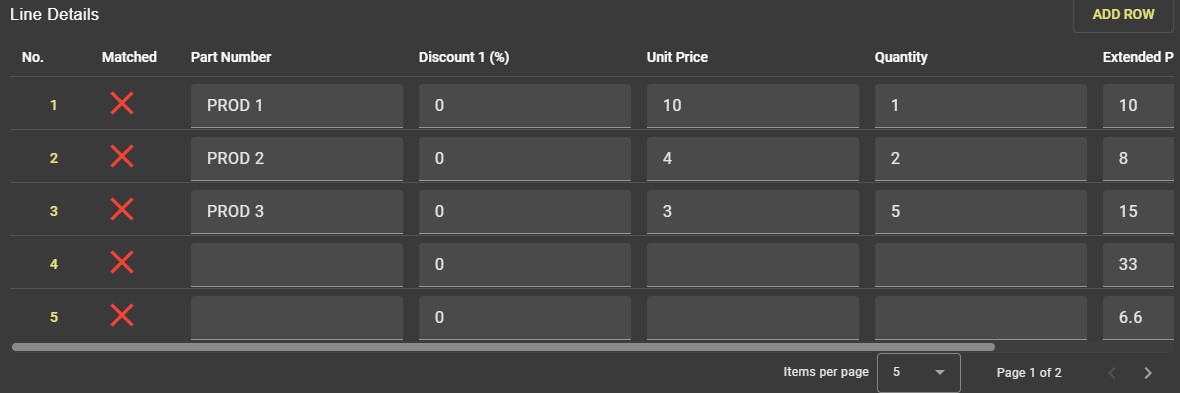
As we can see from the images, although the columns are configured in the correct locations 3 line items are being added to the table that should not be there. These extra lines are originating from the order totals just below the table.
To fix this issue we can use one or more of the available table columns to limit what Invoice Automation will consider a valid row. Lets go to the Template Editor and have a look at the table configuration.
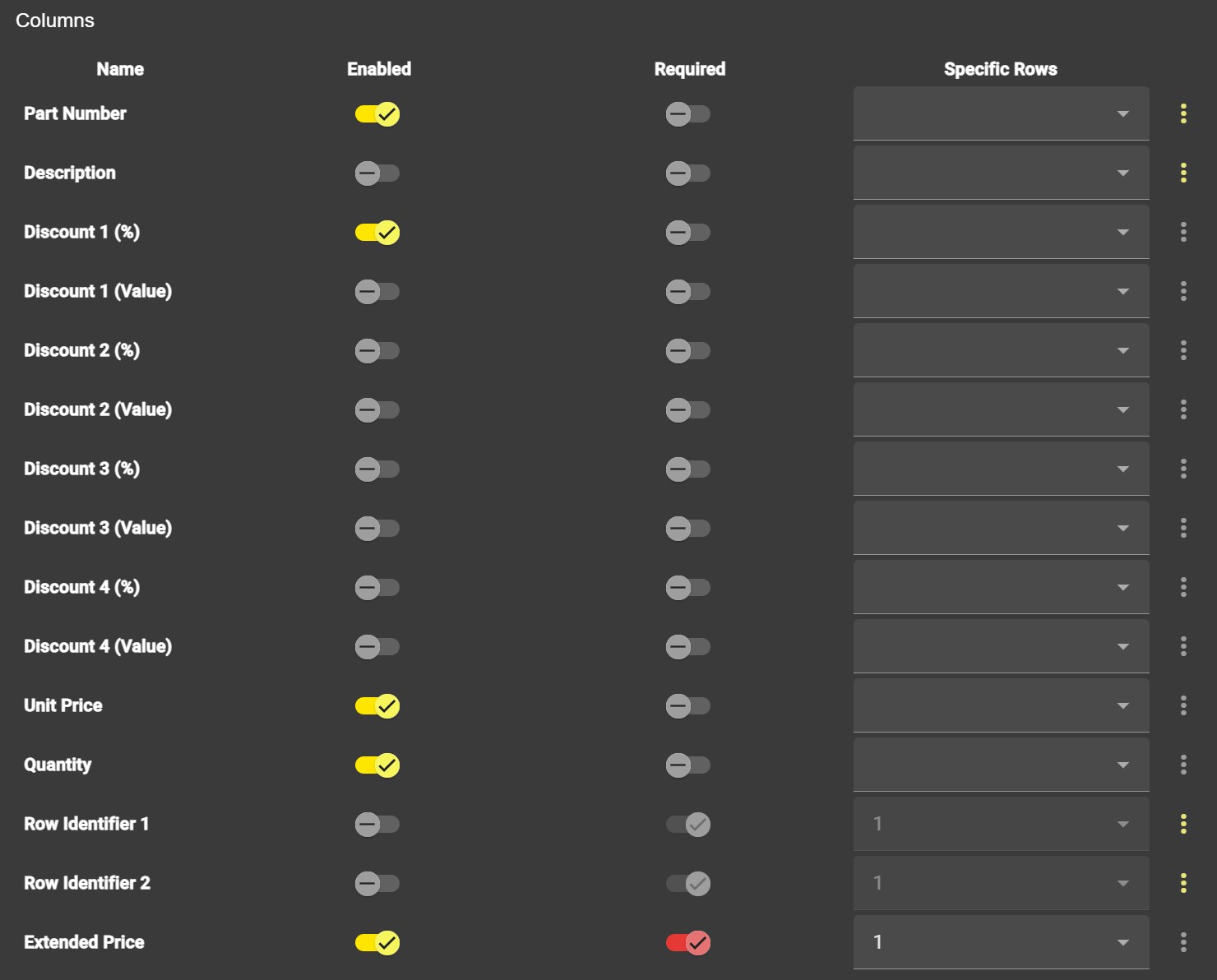
This table is only using the Extended Price column as its required field, however this also lines up with the totals, lets select an additional column to also mark as required. We could use Part Number, Quantity (Qty) or Unit Price here as all 3 of these columns do not have a value along side the incorrect values currently being picked up. We will use the Part Number, lets select it, save the document and check the results.

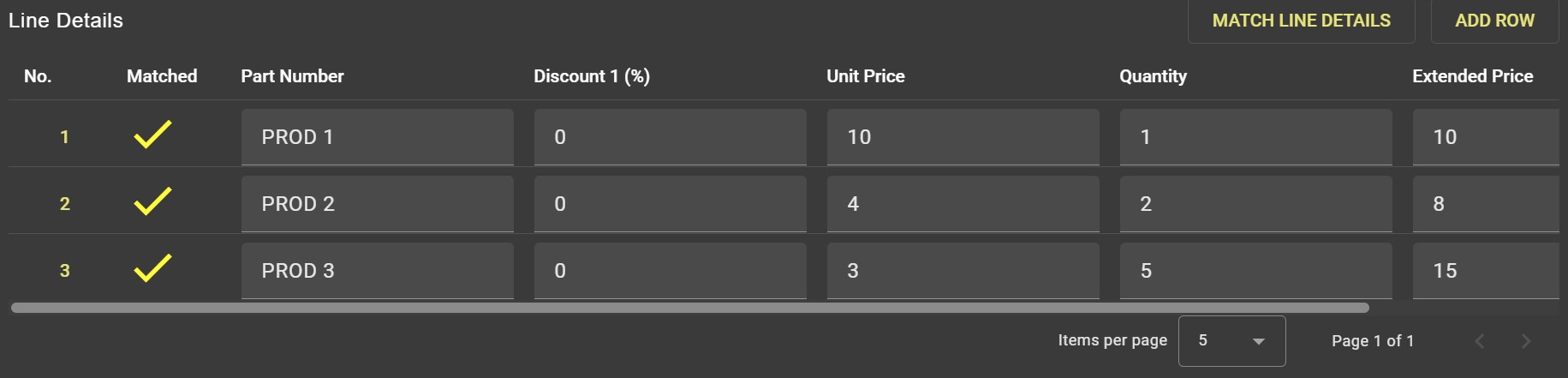
As we can see from the image the incorrect rows are no longer present in the table and the document has processed successfully.
Row Identifiers
Sometimes incorrect data may be detected within a table by Invoice Automation where using the Required Columns feature is not possible due to the location of the incorrect data. Lets take a look at an example.
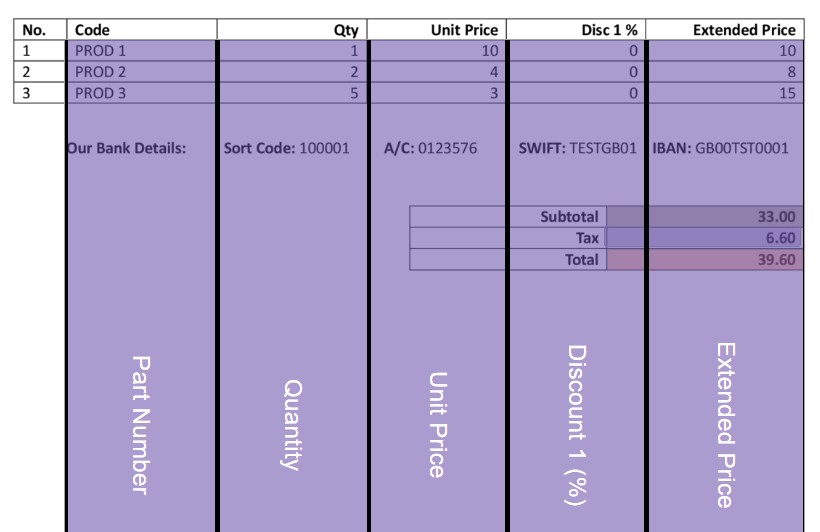
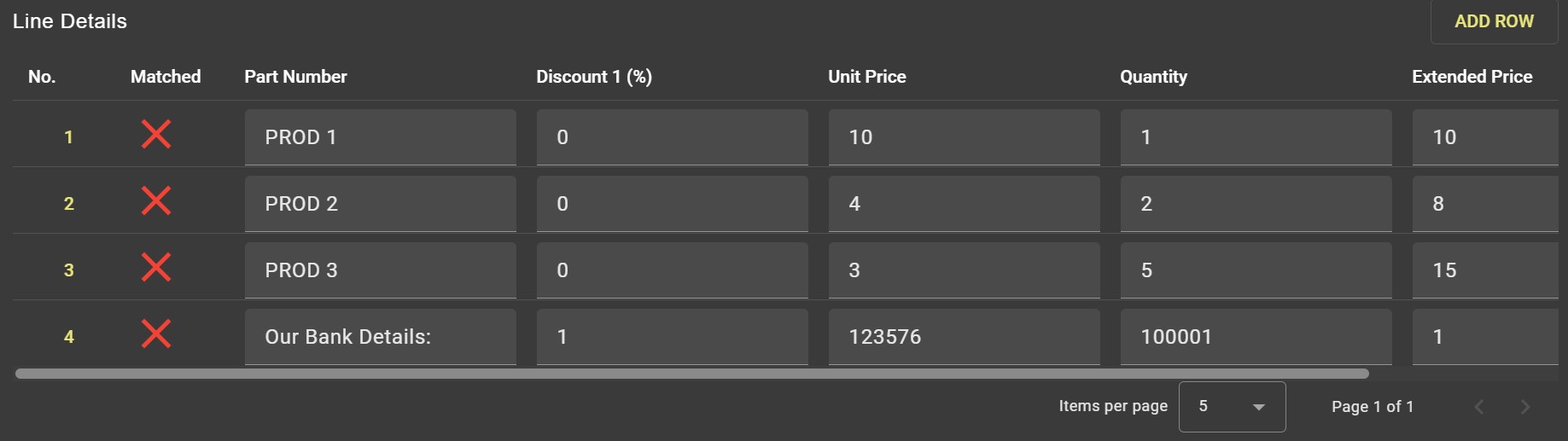
As we can see from the images, an incorrect row is being added to the table lines on this invoice due to the location of the suppliers bank details. In this instance each column contains what Invoice Automation believes could be a valid document value so using the Required option is not possible.
However there is an extra column available to the left of the table that contains the line number. As this column is not actually part of the table data, we do not want to export it to our connected ERP solution. We can however use a Row Identifier to use that column and solve the issue.
Row Identifiers exist only to help Invoice Automation determine what should and shouldn't be part of a table, they are by their nature always considered Required (when the column is enabled) & are never present in the resulting table values. Lets add a Row Identifier to the Line Number column, and check the result.
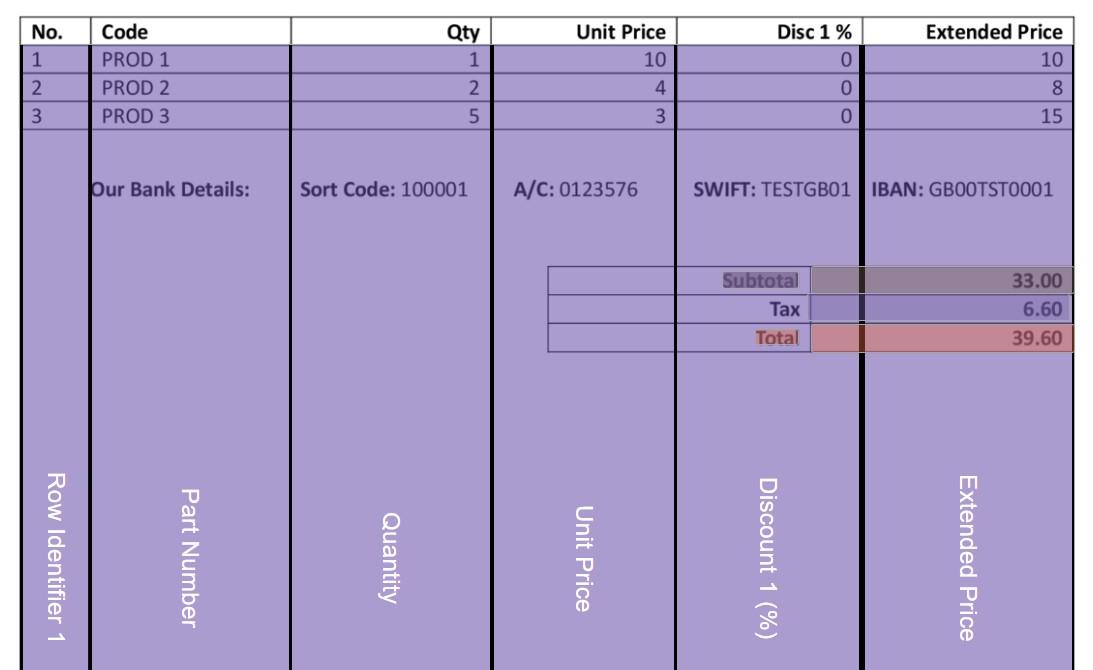
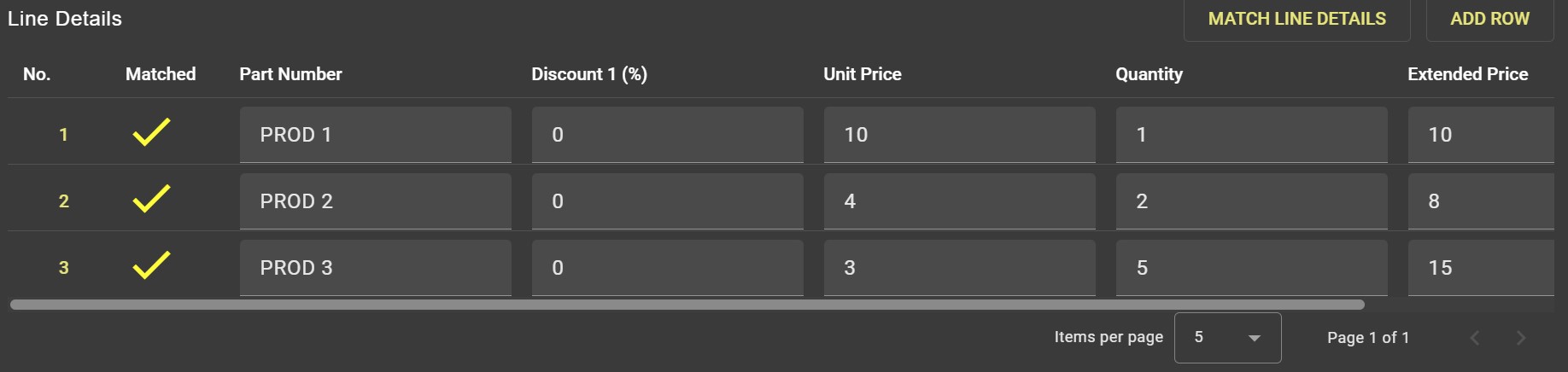
With a Row Identifier in place the incorrect table row has been removed from the document value & the document has processed successfully.
Specific Rows
Invoice Automation has the ability to limit the data used for a column in a table to only specific rows of a line item. This can be used, for example, in instances where a suppliers Invoice vertically stacks multiple columns. Lets take a look at an example.
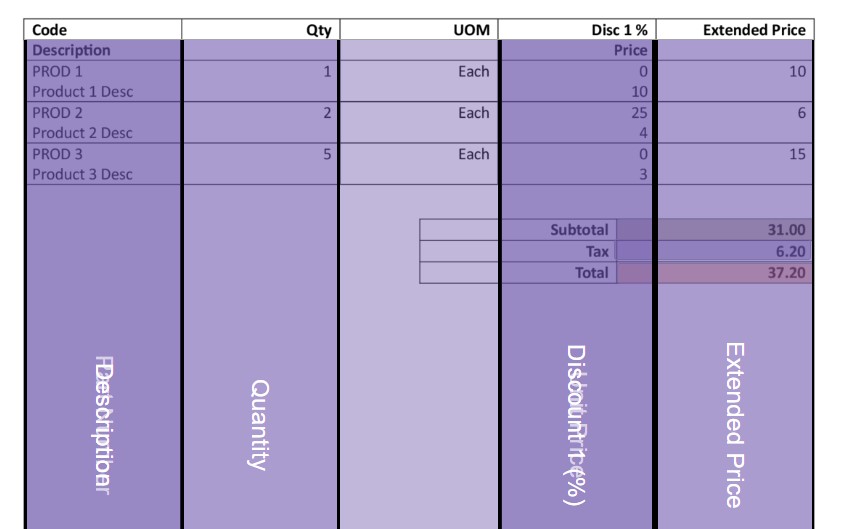
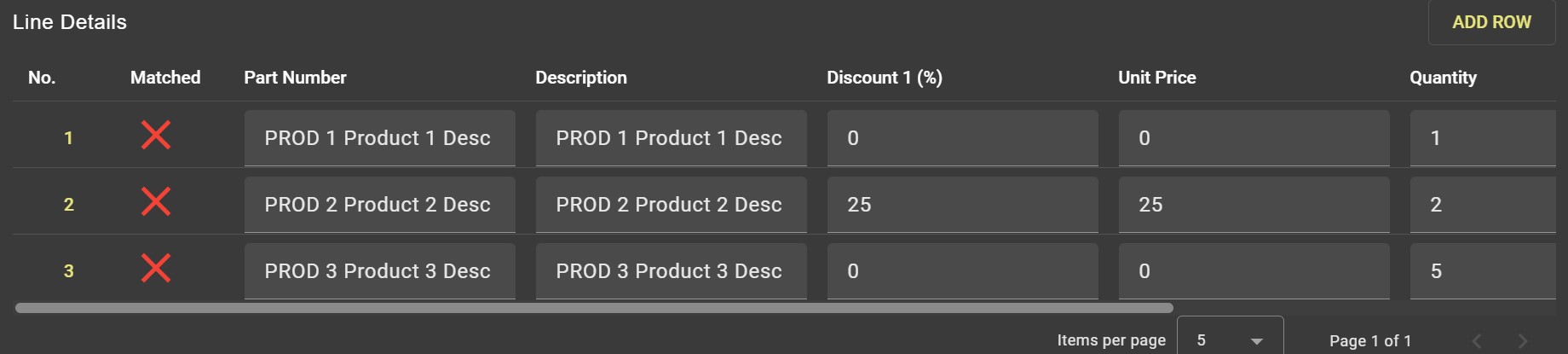
As we can see from the images, this invoice has the Line Discount stacked on top of the Unit Price. Although Invoice Automation has been able to extract a value for both the fields by placing both columns in the same place it has used only the Discount value for both the Discount & Unit Price.
Lets change the template to tell Invoice Automation where to find each value.
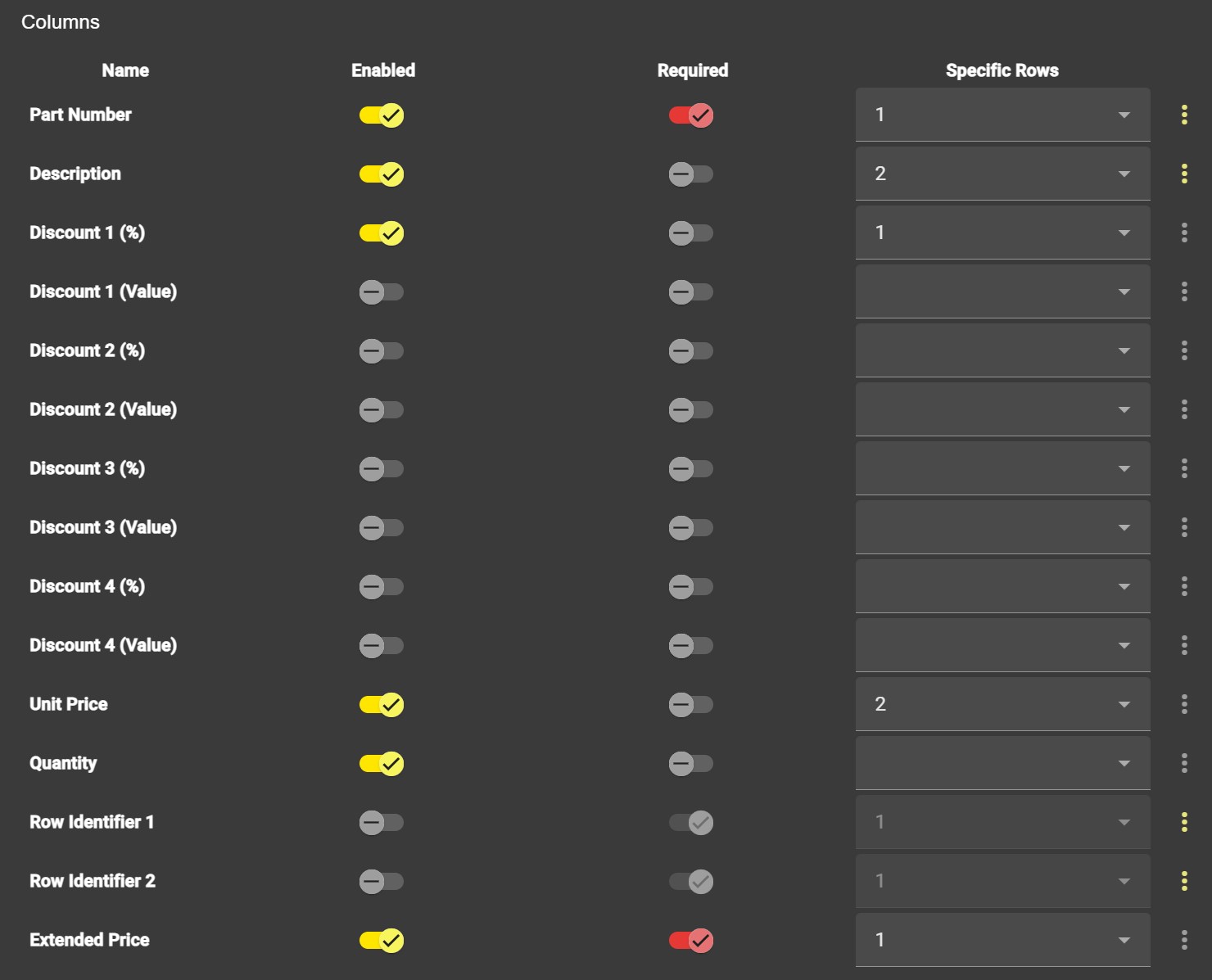
Here we have updated the template to tell Invoice Automation where to find the Discount and Unit Price values, by telling it that the Unit Price is on row number 2 and the Line Discount is on row number 1 of each line item Invoice Automation will be able to correctly interpret the table.
Info
You may notice that both Extended Price & Part Number also have specific rows set. This is due to those columns being Required, all required columns must exist on at least line number 1 so this value is automatically set.
Lets save the template and check the output.
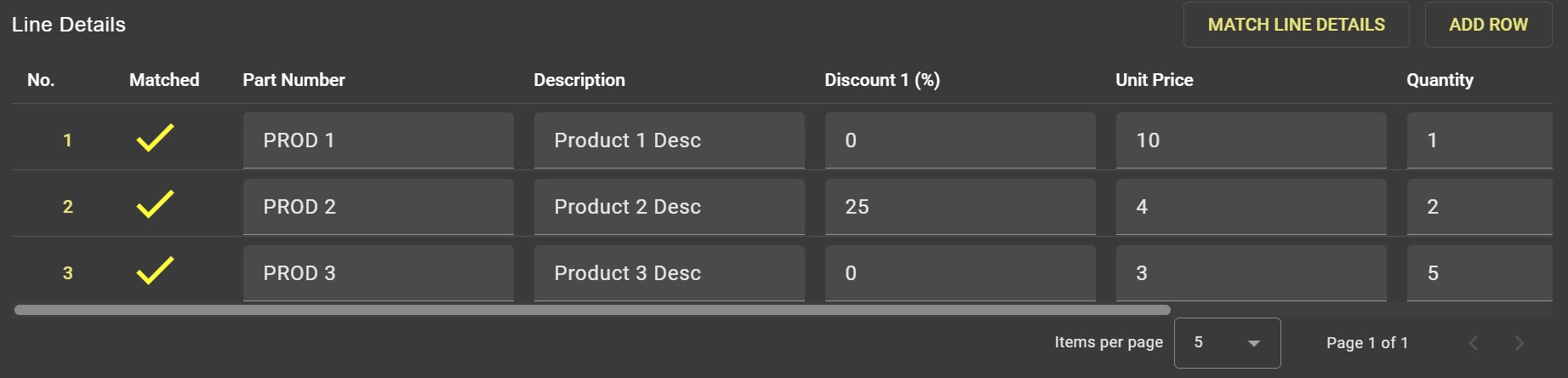
We can see now that Invoice Automation has been able to successfully extract the data from the table, placing both the Line Discount & Unit Price into their respective columns.